Settings
 Fast Delivery
 Free Shipping
 Incoterms
 Payment Types


 Marketplace Product

Arduino Wireless Weather Station Using NRF24L01, DHT11-DHT22 Sensor and
2026-05-06 | By Ron Cutts
License: GNU Lesser General Public License Humidity Temperature Arduino ESP32
In this project, we are going to build a wireless weather station using two NRF24L01 modules that will display both indoor and outdoor temperature & humidity.
Watch the video!
Learn more about Visuino: What is Visuino
What You Will Need
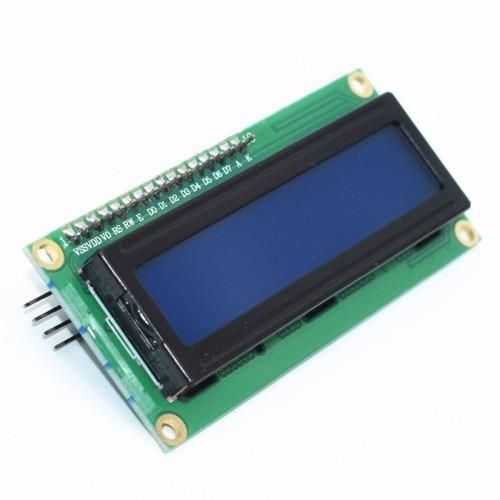
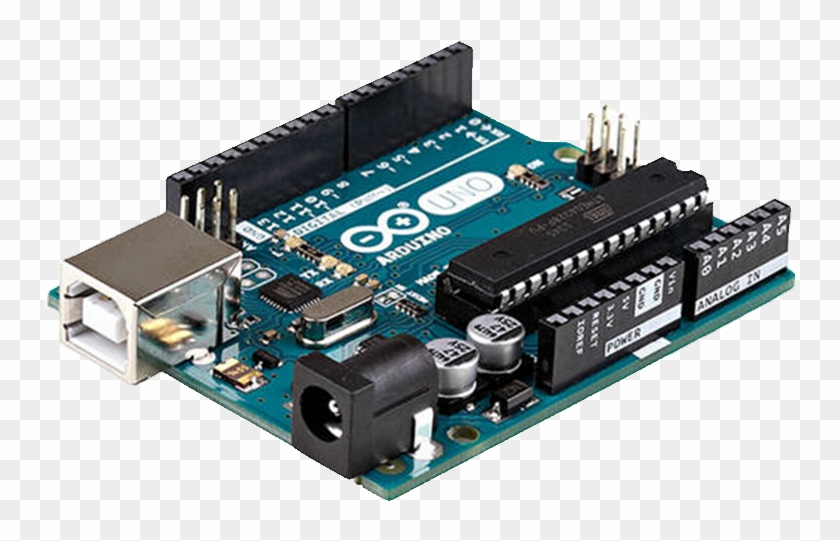
2X Arduino UNO (or any other Arduino)
Visuino program: Download Visuino
The Circuit
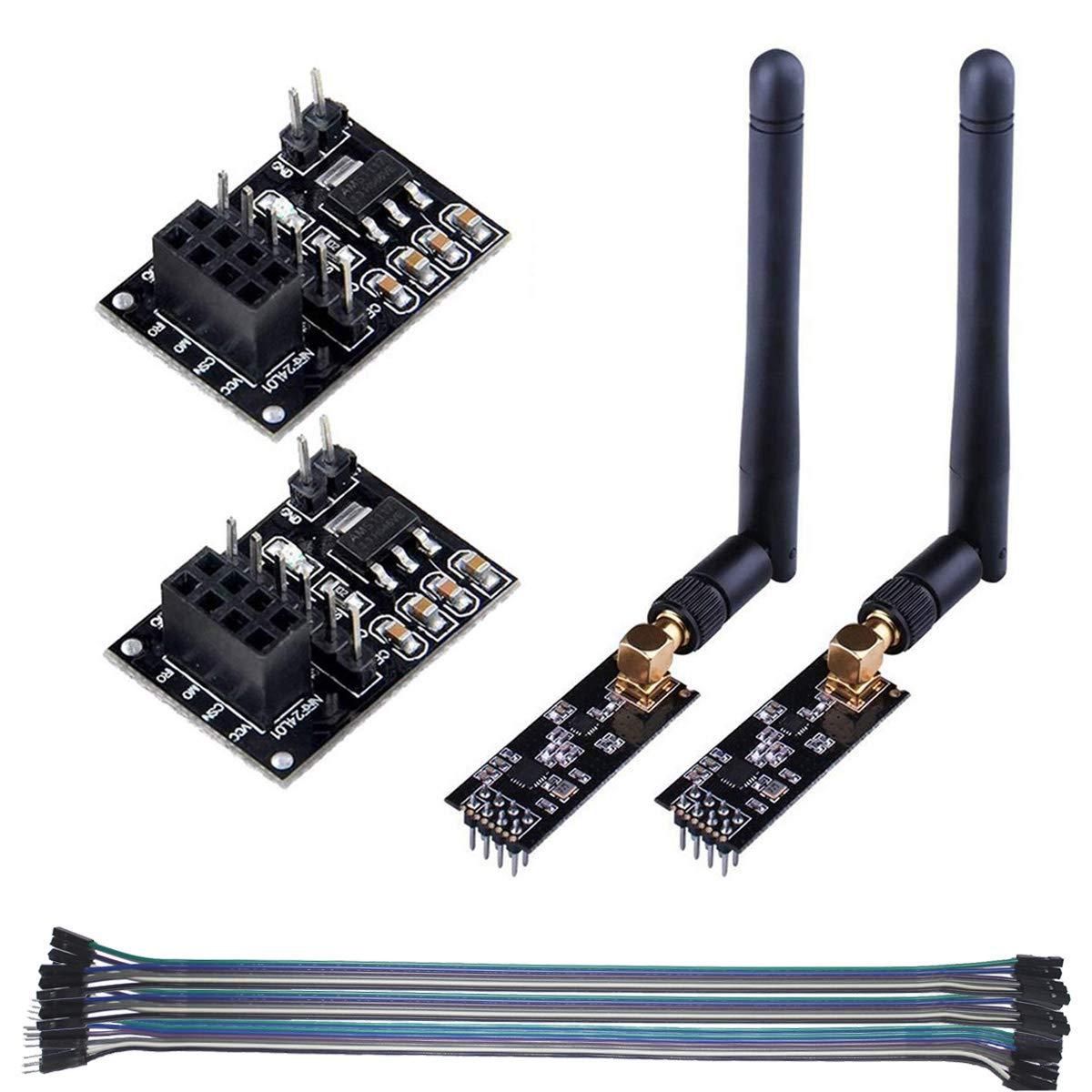
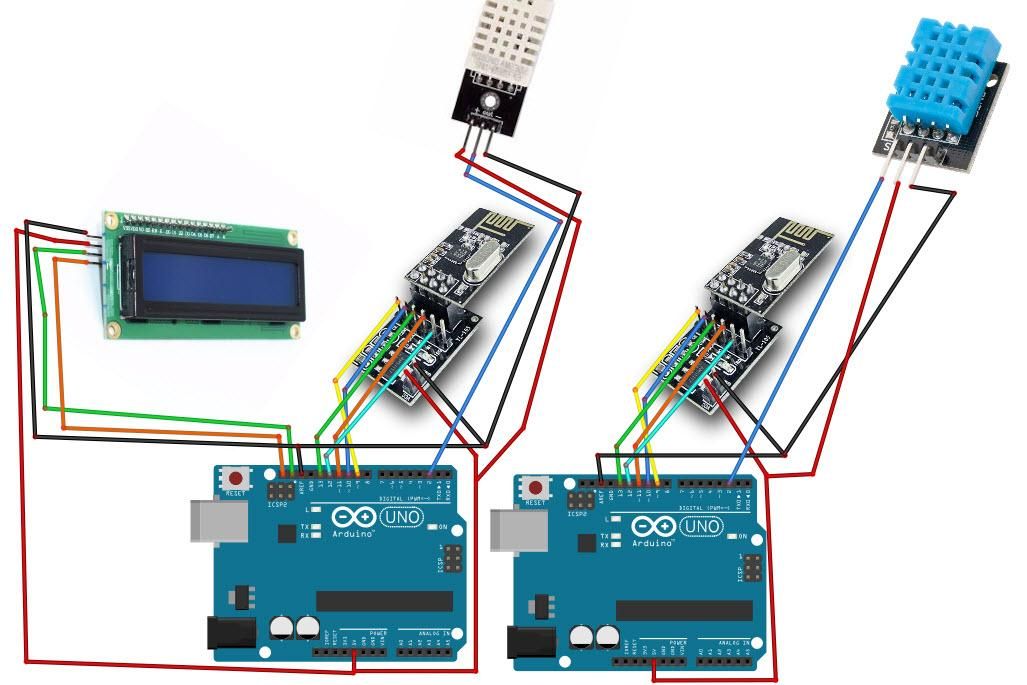
For this project, we are using an NRF24L01 module together with a voltage adapter.
Wiring the Sender Arduino:
Connect the NRF24L01 Adapter pin [VCC] to Arduino pin [5V]
Connect the NRF24L01 Adapter pin [GND] to the Arduino pin [GND]
Connect the NRF24L01 Adapter pin "Chip Enable" [CE] to Arduino Digital pin [9]
Connect the NRF24L01 Adapter pin "Chip Select" [CSN] to Arduino Digital pin [10]
Connect the NRF24L01 Adapter pin [SCK] to Arduino Digital pin [13]
Connect the NRF24L01 Adapter pin [MO] to Arduino Digital pin [11]
Connect the NRF24L01 Adapter pin [MI] to Arduino Digital pin [12]
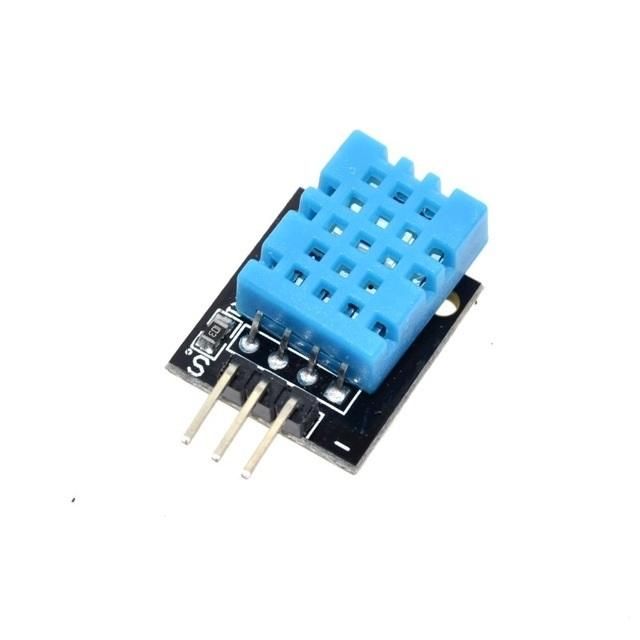
Connect DHT11 sensor pin [VCC] to Arduino pin [5V]
Connect DHT11 sensor pin [GND] to Arduino pin [GND]
Connect DHT11 sensor pin [OUT] to Arduino Digital pin [2]
Wiring the Receiver Arduino:
Connect the NRF24L01 Adapter pin [VCC] to Arduino pin [5V]
Connect the NRF24L01 Adapter pin [GND] to the Arduino pin [GND]
Connect the NRF24L01 Adapter pin "Chip Enable" [CE] to Arduino Digital pin [9]
Connect the NRF24L01 Adapter pin "Chip Select" [CSN] to Arduino Digital pin [10]
Connect the NRF24L01 Adapter pin [SCK] to Arduino Digital pin [13]
Connect the NRF24L01 Adapter pin [MO] to Arduino Digital pin [11]
Connect the NRF24L01 Adapter pin [MI] to Arduino Digital pin [12]
Connect LCD Display pin [SCL] to Arduino pin [SCL]
Connect LCD Display pin [SDA] to Arduino pin [SDA]
Connect LCD Display pin [VCC] to Arduino pin [5V]
Connect LCD Display pin [GND] to Arduino pin [GND]
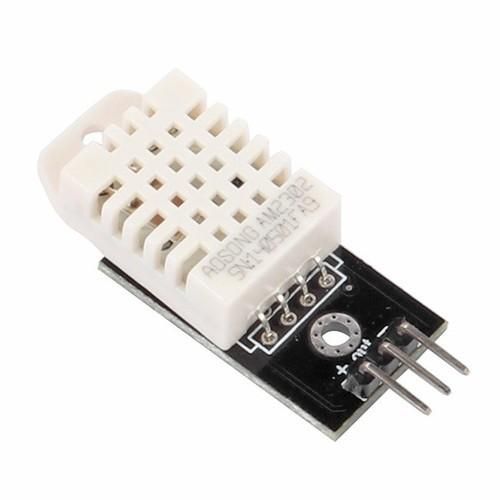
Connect the DHT12 sensor pin [VCC] to the Arduino pin [5V].
Connect DHT12 sensor pin [GND] to Arduino pin [GND]
Connect DHT12 sensor pin [OUT] to Arduino Digital pin [2]
Start Visuino, and Select the Arduino UNO Board Type
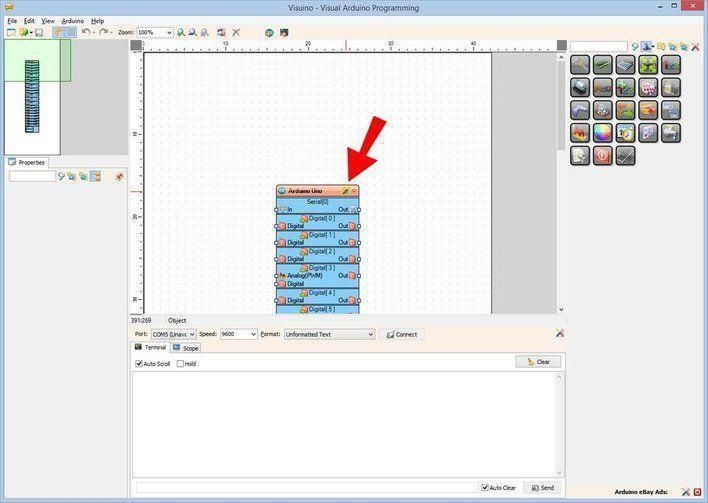
The Visuino: https://www.visuino.eu also needs to be installed. Download the free version or register for a free trial.
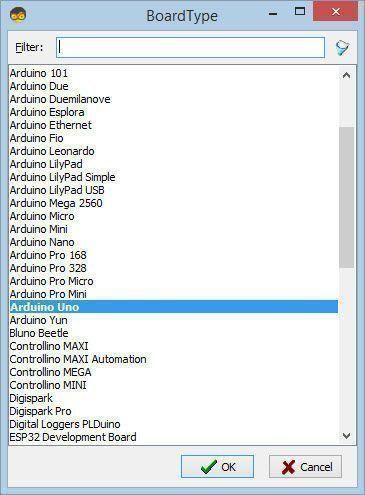
Start Visuino as shown in the first picture. Click on the "Tools" button on the Arduino component (Picture 1) in Visuino. When the dialog appears, select "Arduino UNO" as shown in Picture 2
For Sender Arduino - in Visuino Add, Set & Connect Components
Add "Make Structure" component
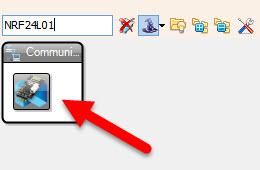
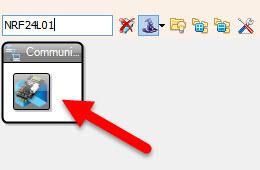
Add "NRF24L01" component
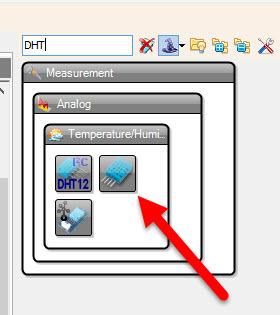
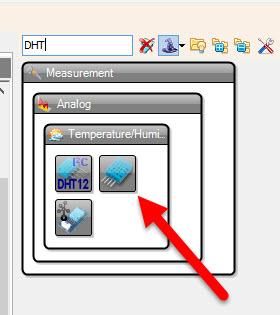
Add "DHT" component
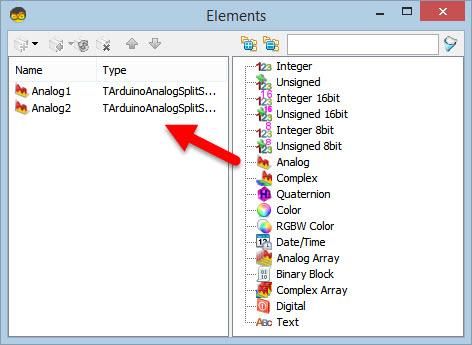
Double-click on the "MakeStructure1" and in the "Elements" window, drag 2X "Analog" to the left side, and close the "Elements" window
Close the "Elements" window
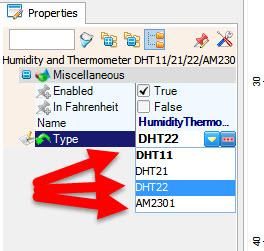
Select "HumidityThermometer1" and in the properties, set "Type" to the sensor that you use, e.g., DHT11, DHT22, etc.
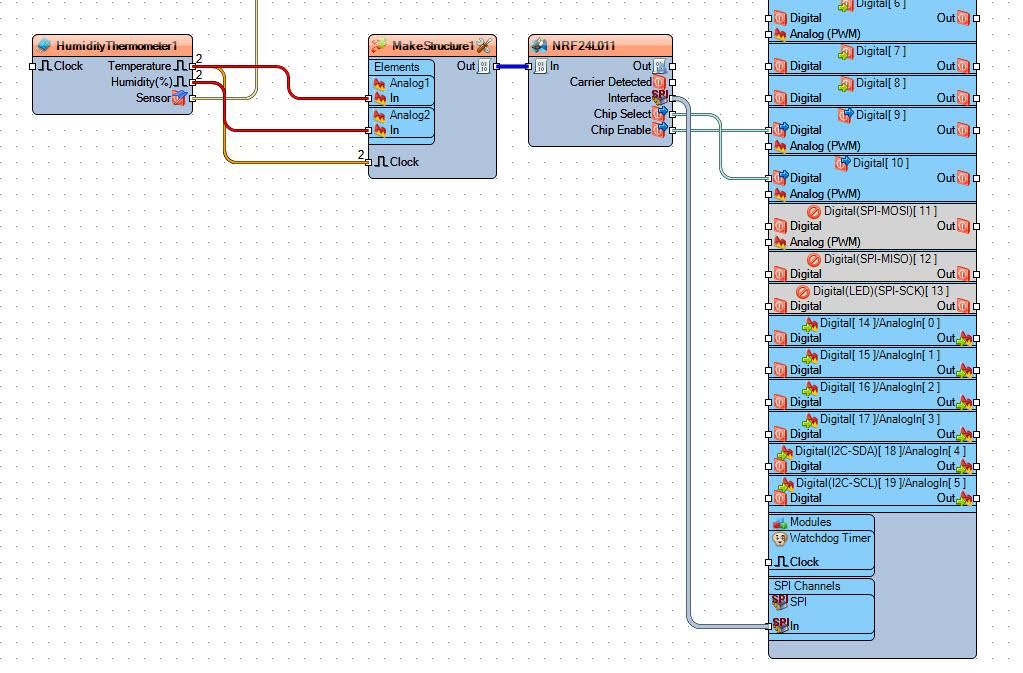
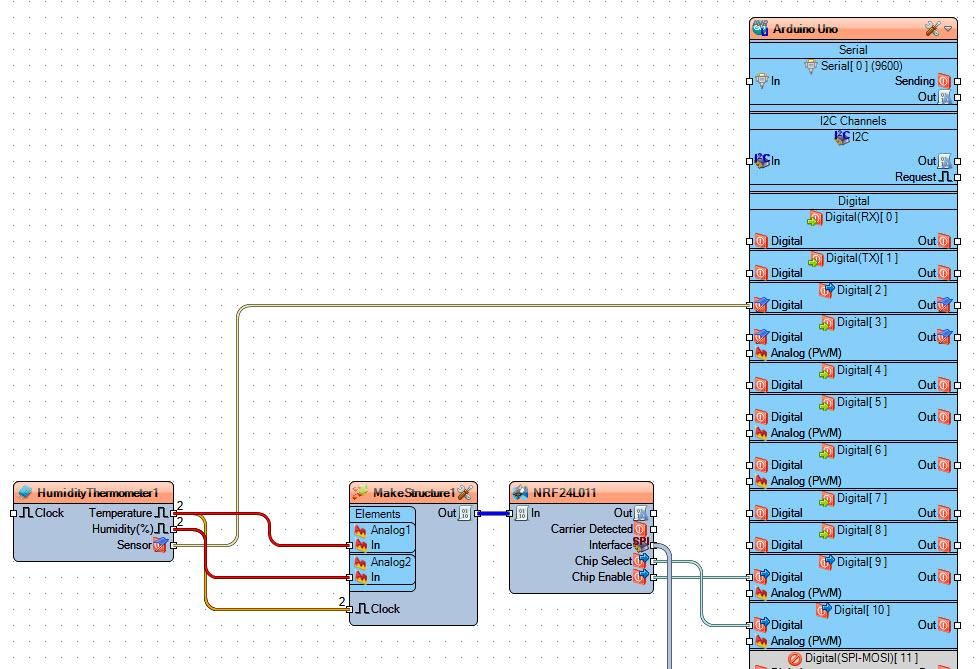
Connect "HumidityThermometer1" pin [Temperature] to "MakeStructure1" > "Analog1" pin [In]
Connect "HumidityThermometer1" pin [Humidity] to "MakeStructure1" > "Analog2" pin [In]
Connect "HumidityThermometer1" pin [Sensor] to Arduino Digital pin [2]
Connect "NRF24L011" pin Interface [SPI] to Arduino board pin [SPI]
Connect "NRF24L011" pin [Chip Select] to Arduino board digital pin [10]
Connect "NRF24L011" pin [Chip Enable] to Arduino board digital pin [9]
Connect "MakeStructure1" pin [Out] to "NRF24L011" pin [In]
Upload the Project to the Arduino Board (see the Generate, Compile, and Upload the Arduino Code step)
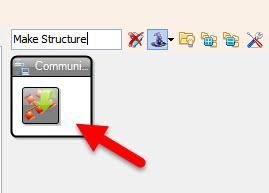
For Receiver Arduino - in Visuino Add, Set & Connect Components
Add "DHT" component
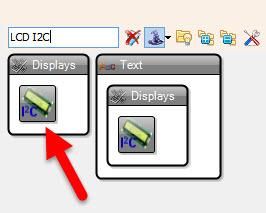
Add "LCD I2C" component
Add "NRF24L01" component
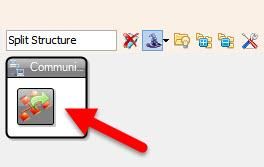
Add "Split Structure" component
Select "HumidityThermometer1" and in the properties, set "Type" to the sensor that you use, e.g., DHT11, DHT22, etc.
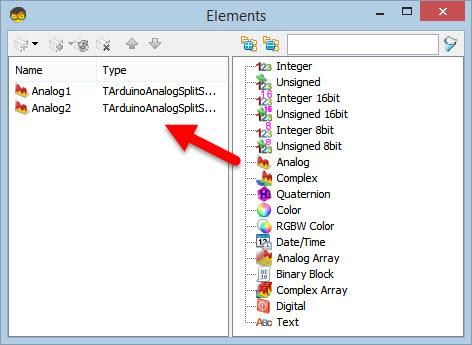
Double-click on the "SplitStructure1" and in the "Elements" window, drag 2X "Analog" to the left side
Close the "Elements" window
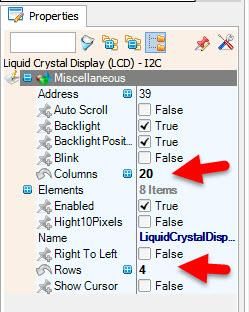
Select "LiquidCrystalDisplay1" and in the properties window, set "Columns" to 20 and "Rows" to 4
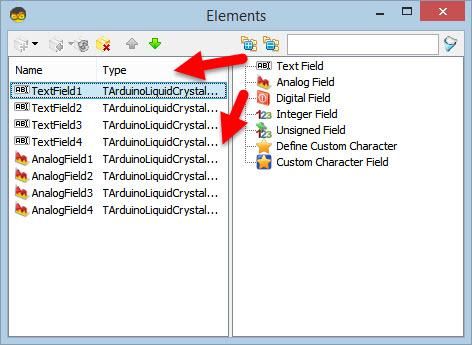
Double-click on the "LiquidCrystalDisplay1" and in the Elements window, drag 4X "Text Field" and 4X "Analog Field" to the left side
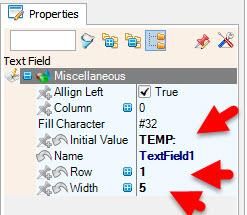
Select "TextField1" and in the properties window set "Initial Value" to "TEMP:" and "Row" to 1 and "Width" to 5
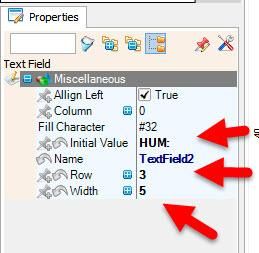
Select "TextField2" and in the properties window set "Initial Value" to "HUM::" and "Row" to 3 and "Width" to 5
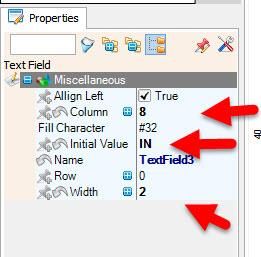
Select "TextField3" and in the properties window, set "Initial Value" to "IN:" and "Column" to 8 and "Width" to 2
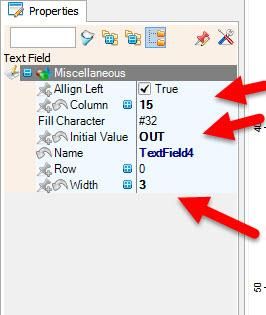
Select "TextField4" and in the properties window set "Initial Value" to "OUT::" and "Column" to 15 and "Width" to 3
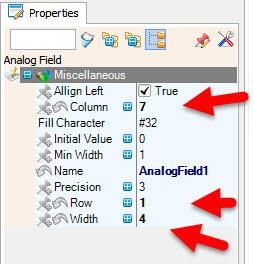
Select "AnalogField1" and in the properties window, set "Column" to 7, "Row" to 1 and "Width" to 4
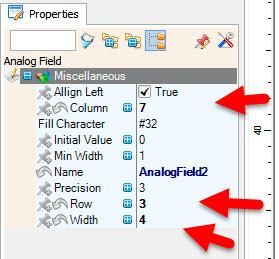
Select "AnalogField2" and in the properties window, set "Column" to 7, "Row" to 3 and "Width" to 4
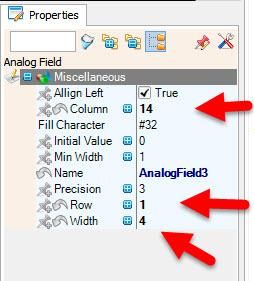
Select "AnalogField3" and in the properties window, set "Column" to 14, "Row" to 1 and "Width" to 4
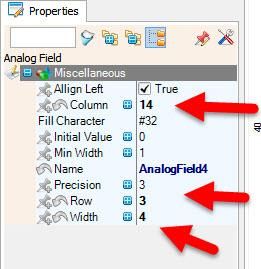
Select "AnalogField4" and in the properties window, set "Column" to 14, "Row" to 3 and "Width" to 4
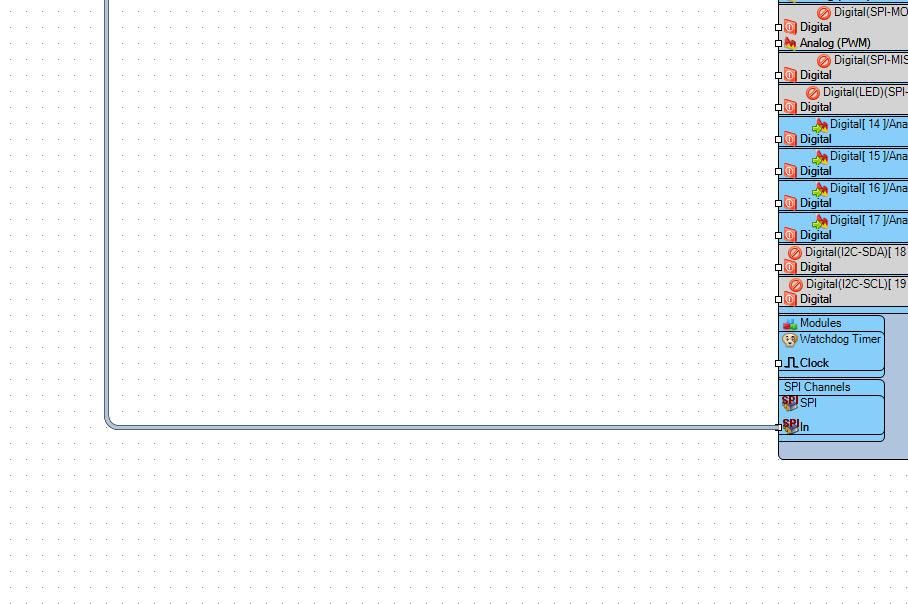
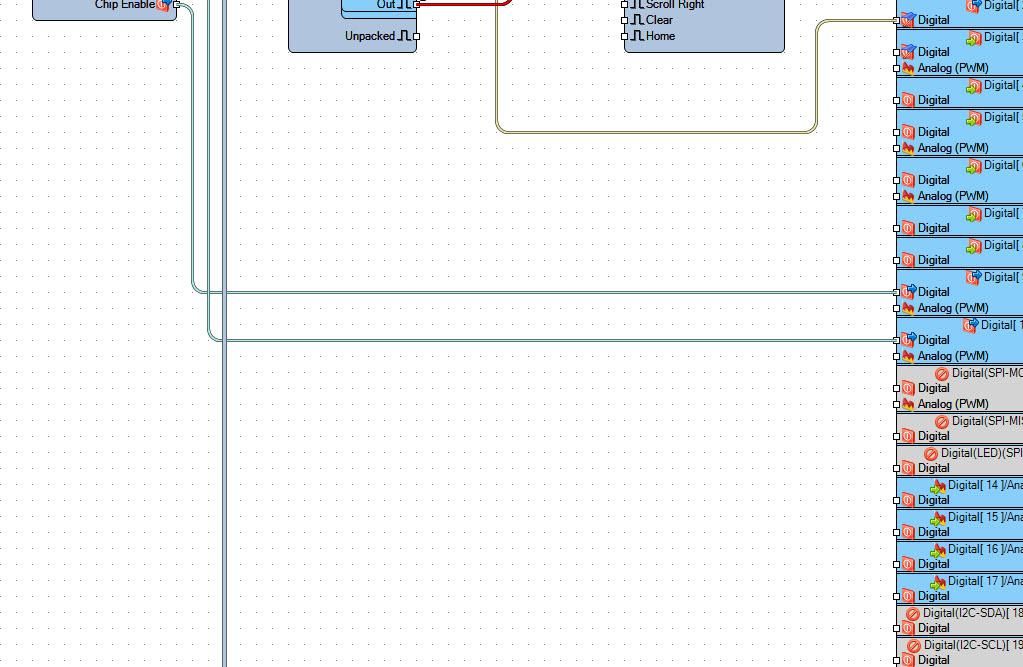
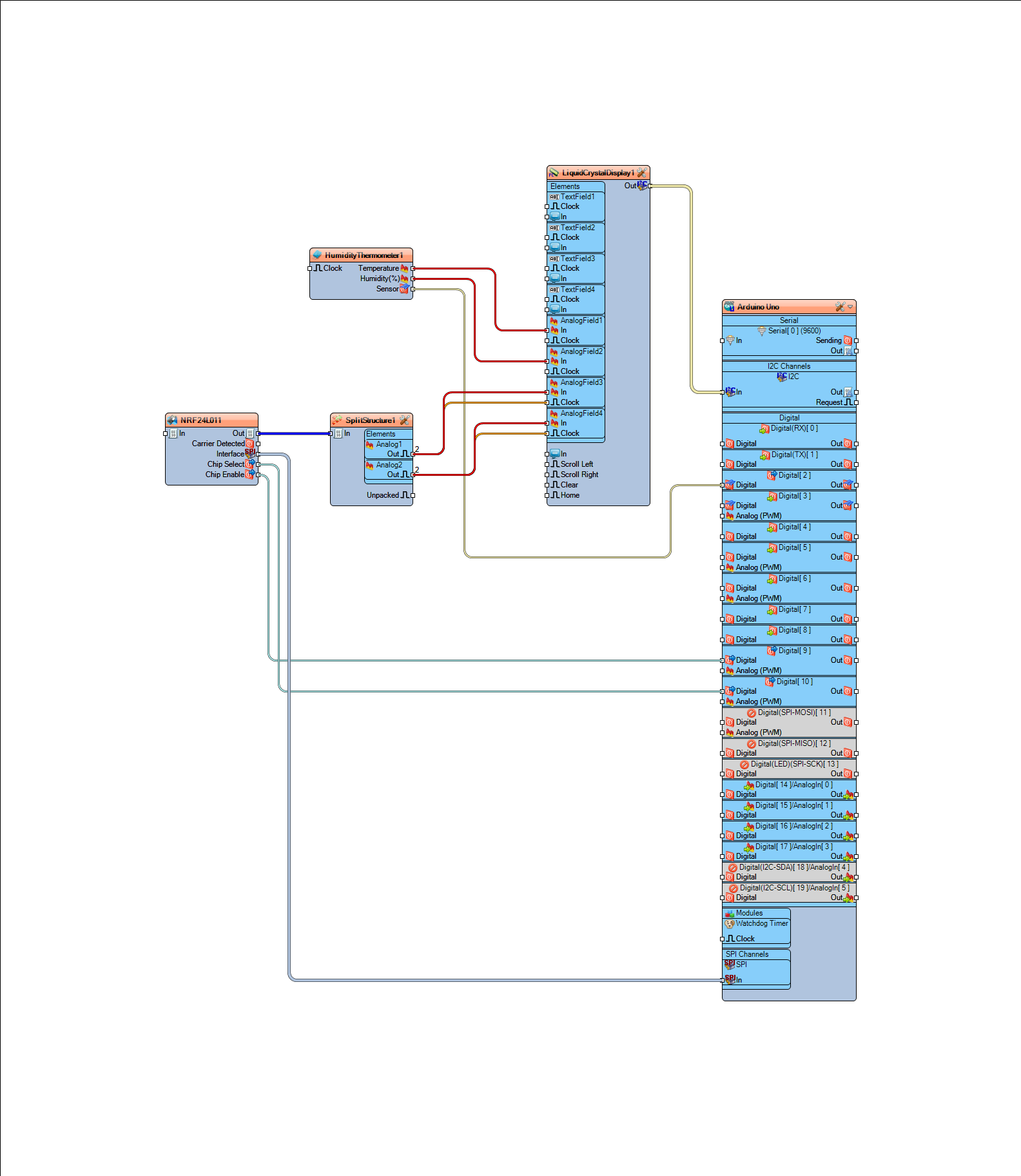
Connect "NRF24L011" pin Interface [SPI] to Arduino board pin [SPI]
Connect "NRF24L011" pin [Chip Select] to Arduino board digital pin [10]
Connect "NRF24L011" pin [Chip Enable] to Arduino board digital pin [9]
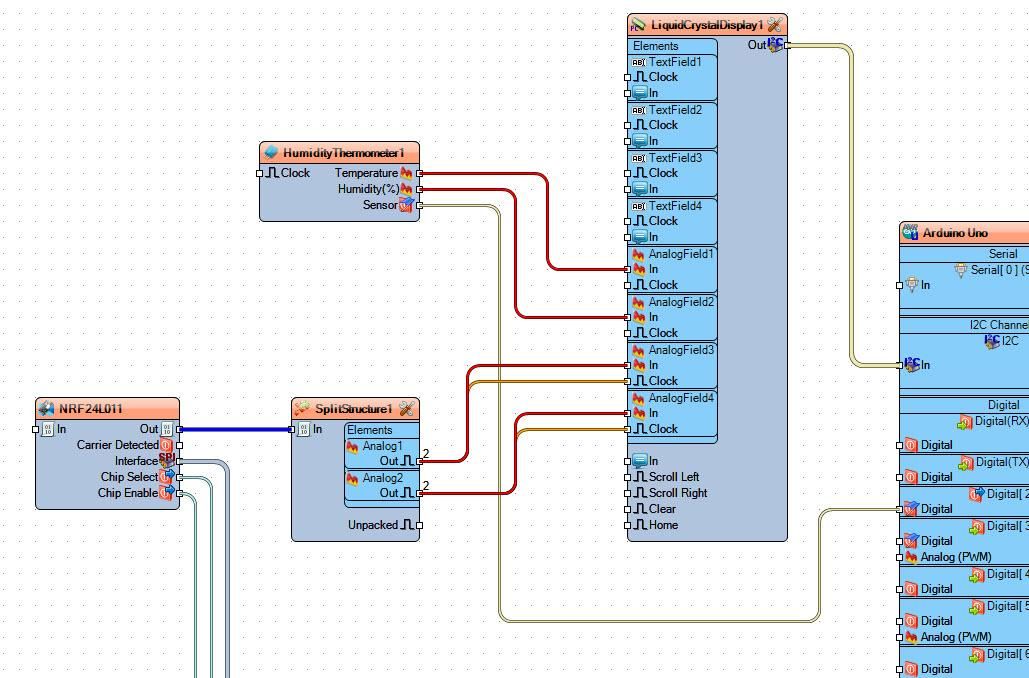
Connect "NRF24L011" pin [Out] to "SplitStructure1" pin [In]
Connect "HumidityThermometer1" pin [Temperature] to "LiquidCrystalDisplay1" > "AnalogField1" pin [In]
Connect "HumidityThermometer1" pin [Humidity] to "LiquidCrystalDisplay1" > "AnalogField2" pin [In]
Connect "HumidityThermometer1" pin [Sensor] to Arduino Digital pin [2]
Connect "SplitStructure1" > "Analog1" pin [Out] to "LiquidCrystalDisplay1" > "AnalogField3" pin [In] and pin [Clock]
Connect "SplitStructure1" > "Analog2" pin [Out] to "LiquidCrystalDisplay1" > "AnalogField4" pin [In] and pin [Clock]
Connect "LiquidCrystalDisplay1" pin I2C [Out] to Arduino pin I2C [In]
Upload the Project to the Arduino Board (see the Generate, Compile, and Upload the Arduino Code step)
Generate, Compile, and Upload the Arduino Code
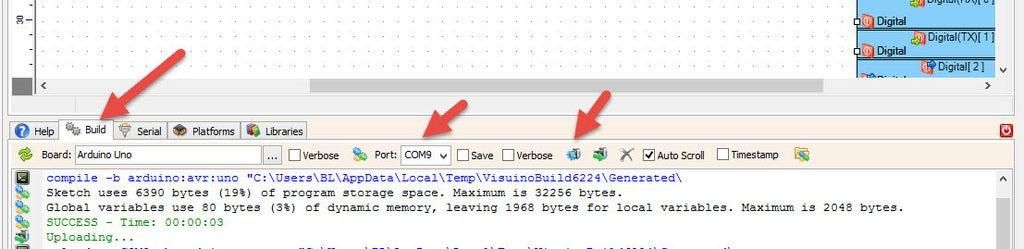
In Visuino, at the bottom, click on the "Build" tab, make sure the correct port is selected, and then click on the "Compile/Build and Upload" button.
Play
If you power the Arduino modules, the LCD display connected to the receiver Arduino will start to show the temperature and humidity inside, and the temperature and humidity from that are received from the sender Arduino.
Congratulations! You have completed your project with Visuino. Also attached are the Visuino project files for Sender and Receiver that I created for this tutorial. You can download it and open it in Visuino: https://www.visuino.eu